How and Why: Can You Run Code in Visual Studio?
The question of whether a developer can execute logic within their development environment is fundamental to the workflow of modern software engineering. When an engineer asks, "can you run code in visual studio," they are not merely asking about a single button click; they are inquiring about the entire orchestration of compilers, debuggers, and runtime environments that transform static text into dynamic, functioning software. Understanding this process is the difference between a novice writing scripts and a professional architecting systems.
Visual Studio, Microsoft’s flagship Integrated Development Environment (IDE), serves as a sophisticated command center. It is designed to manage the lifecycle of an application from the first line of syntax to the final deployment. To answer the core inquiry, the answer is a resounding yes, but the "how" varies significantly depending on the language, the project type, and the specific configuration of the local machine. The platform provides a robust framework that handles the heavy lifting of translation and execution, allowing the human programmer to focus on logic rather than machine-level instructions.
Navigating the intricacies of execution within this environment requires a grasp of the underlying tooling. Whether you are working with C++, C#, Python, or web technologies, the IDE acts as the bridge between your intent and the hardware. This article examines the mechanics of execution, the distinction between the IDE and the lightweight Code editor, and the technical requirements necessary to successfully trigger a build and run process within the Microsoft ecosystem.
The Complete Overview of Execution Capabilities
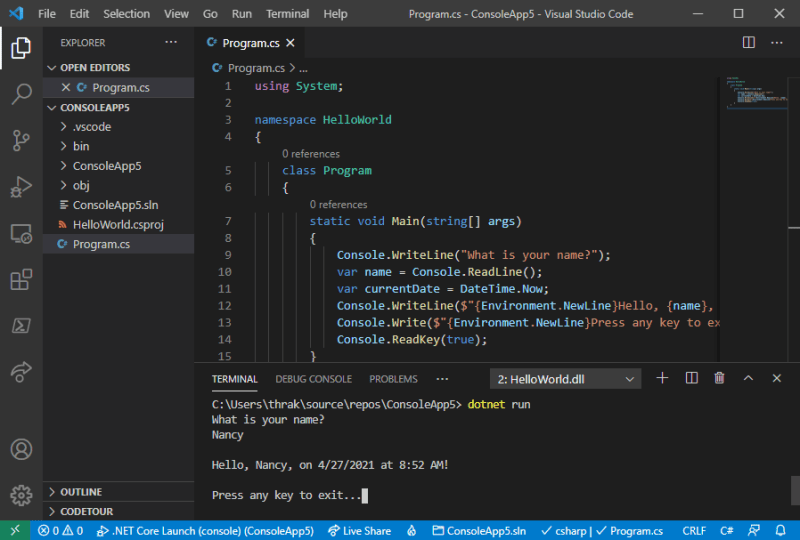
To address the technical reality of whether one can run code in Visual Studio, we must first distinguish between the IDE and its lightweight sibling, Visual Studio Code. While both share a name, the full Visual Studio IDE is a heavy-duty powerhouse designed for deep integration with the .NET framework, C++ compilers, and complex debugging sessions. In the full IDE, running code involves a multi-stage pipeline: writing the source, compiling it into an executable or intermediate language, and then launching that entity within a managed or unmanaged runtime.
The execution process is governed by the "Solution" and "Project" structure. Unlike a simple text editor, Visual Studio organizes code into logical units that define how the software should be built. When you initiate a run command, the IDE consults the project settings to determine which compiler to invoke, which dependencies to link, and which entry point (such as a Main method) to trigger. This structured approach ensures that complex, multi-file applications can be executed with a single keystroke, providing a seamless transition from development to testing.
Historical Background and Evolution
The evolution of code execution within the Microsoft ecosystem mirrors the shift from monolithic desktop computing to distributed, cloud-native architectures. In its early iterations, Visual Studio was primarily a tool for Windows-centric development, focusing heavily on Visual Basic and C++. The execution models were tightly coupled with the Windows operating system, relying on specific DLLs and local system registries. During this era, the ability to run code was synonymous with building Windows-based desktop applications.
Table of Contents
- The Complete Overview of Execution Capabilities
- Historical Background and Evolution
- Core Mechanisms: How It Works
- Key Benefits and Crucial Impact
- Major Advantages
- Comparative Analysis
- Future Trends and Innovations
- Conclusion
- Comprehensive FAQs
- Q: Can you run code in Visual Studio without a compiler?
- Q: Why is my code not running in Visual Studio?
- Q: What is the difference between "Start Debugging" and "Start Without Debugging"?
- Q: Can I run Python code in the full Visual Studio IDE?
- Q: Does running code in Visual Studio require an internet connection?
As the industry moved toward cross-platform development and web services, the IDE underwent a massive transformation. The introduction of .NET Core and later .NET 5/6/7/8 allowed developers to use Visual Studio to run code that could eventually live on Linux servers or in Docker containers. This shift meant that the "run" command in the IDE became more abstracted; it no longer just meant "launch a .exe on my desktop," but rather "prepare this code for a specific runtime environment," whether that be a web server, a mobile emulator, or a cloud instance.
Core Mechanisms: How It Works
At the heart of the ability to run code in Visual Studio lies the Build Engine, specifically MSBuild. When a developer triggers the execution command, MSBuild reads the project file to understand the sequence of tasks required. This includes restoring NuGet packages, compiling source files into object files, linking them together, and producing a final output. This automation is what allows the IDE to manage the immense complexity of modern software dependencies without manual intervention from the user.
Once the build is successful, the IDE hands the resulting binary over to the appropriate runtime. For C# applications, this is the Common Language Runtime (CLR), which manages memory and execution via Just-In-Time (JIT) compilation. For C++ applications, the code is executed directly by the processor or via a specialized runtime environment. Furthermore, the integration of the Debugger allows the developer to pause this execution at any moment, inspect the state of the memory, and step through the logic line by line, providing a level of control that is essential for professional software quality assurance.
Key Benefits and Crucial Impact
The impact of having a centralized environment where you can run code in Visual Studio cannot be overstated. It eliminates the "context switching" tax that plagues developers who must jump between a text editor, a terminal, and a separate debugger. By unifying these tools, the IDE creates a flow state where the developer can experiment, fail, and iterate with minimal friction. This speed of iteration is a primary driver of productivity in high-stakes software engineering environments.
Moreover, the integration of intelligent tooling provides a safety net. The IDE does not just run the code; it analyzes it in real-time. It catches syntax errors before you even attempt to execute, and it provides deep insights into performance bottlenecks during the run phase. This holistic approach transforms the IDE from a mere utility into a sophisticated partner in the creative process of programming.
"The efficiency of a developer is directly proportional to the quality of their feedback loop. An IDE that integrates execution and debugging minimizes the distance between an idea and its validation."
Major Advantages
- Integrated Debugging: Allows for real-time inspection of variables and memory states during execution.
- Automated Build Pipelines: Manages complex compilation steps and dependency resolution through MSBuild.
- IntelliSense and Error Checking: Provides immediate feedback, reducing the time spent on trivial syntax errors before running code.
- Multi-Platform Support: Enables the execution and testing of code destined for Windows, Linux, macOS, and mobile devices.
- Extensive Ecosystem: Supports a vast array of languages and frameworks through specialized workloads and extensions.
Comparative Analysis
| Feature | Visual Studio (Full IDE) | Visual Studio Code (Editor) |
|---|---|---|
| Primary Use Case | Complex, large-scale enterprise applications. | Lightweight scripting and web development. |
| Execution Method | Built-in compilers and deep debugger integration. | relies on external extensions and terminal commands.|
| Resource Intensity | High; requires significant RAM and CPU. | Low; highly performant on most hardware. |
| Project Management | Native support for complex .sln and .csproj files. | Folder-based with extension-driven project logic.
Future Trends and Innovations
Looking forward, the question of how we run code in Visual Studio is being reshaped by Artificial Intelligence. We are seeing the emergence of "AI-augmented execution," where tools like GitHub Copilot do more than just suggest code; they assist in interpreting execution errors and suggesting fixes in real-time. The future will likely see the IDE predicting potential runtime failures before the developer even hits the "Run" button, effectively moving the debugging process from the execution phase to the writing phase.
Additionally, the trend toward cloud-based development environments is accelerating. We are moving toward a model where the heavy lifting of compilation and execution happens on remote, high-performance servers, while the developer interacts with a thin client. This "Remote Development" paradigm will allow developers to run massive, resource-intensive applications on lightweight hardware, effectively decoupling the development experience from the physical limitations of the local machine.

Conclusion
In summary, the ability to run code in Visual Studio is a multifaceted capability that serves as the backbone of professional software development. It is not a simple binary function but a sophisticated orchestration of compilers, build engines, and debuggers. By understanding the distinction between the IDE and its lighter counterparts, and by mastering the underlying mechanisms of MSBuild and various runtimes, developers can leverage the full power of the Microsoft ecosystem to build robust, scalable software.
Whether you are a student learning the basics of logic or a senior engineer managing massive codebases, the tools provided by Visual Studio offer a level of depth and control that is unmatched in the industry. As the landscape of programming continues to evolve through AI and cloud integration, the core necessity of a powerful, integrated execution environment remains constant. Mastering this environment is a vital step in any serious technological career.
Comprehensive FAQs
Q: Can you run code in Visual Studio without a compiler?
A: No. To execute code, the computer must eventually understand it in machine language or an intermediate language. Visual Studio relies on compilers (like MSVC for C++ or the Roslyn compiler for C#) to translate your human-readable code into a format the processor or runtime can execute. Without a compiler or an interpreter, the code remains nothing more than a text file.
Q: Why is my code not running in Visual Studio?
A: There are several common reasons for execution failure. The most frequent include syntax errors that prevent a successful build, missing dependencies or NuGet packages, incorrect project configurations (such as targeting the wrong version of .NET), or errors in the startup project settings. Always check the "Error List" window for specific build failures.
Q: What is the difference between "Start Debugging" and "Start Without Debugging"?
A: "Start Debugging" (usually F5) runs your code while attaching the Visual Studio debugger, allowing you to use breakpoints and inspect variables. "Start Without Debugging" (usually Ctrl+F5) runs the application at full speed without the overhead of the debugger. This is useful for testing the final performance of your application or when you don't need to step through the code.
Q: Can I run Python code in the full Visual Studio IDE?
A: Yes, you can. While Visual Studio Code is often preferred for Python due to its lightness, the full Visual Studio IDE supports Python through the installation of the "Python development" workload. This provides specialized debugging, IntelliSense, and environment management tailored for Python developers.
Q: Does running code in Visual Studio require an internet connection?
A: Generally, no. Once the necessary workloads, compilers, and SDKs are installed on your local machine, you can write, compile, and run code entirely offline. However, an internet connection is required for the initial installation, downloading NuGet packages, or using cloud-based features like Live Share and certain AI-assisted tools.
Leave a Comment
Comments are moderated before appearing. The data you submit is processed according to the Privacy Policy of cixa.org.