Essential Tips: How to Redo in Visual Studio Code
Efficiency in software development is often measured by the fluidity of a programmer's interaction with their environment. When a developer makes an error or accidentally removes a critical block of logic, the ability to revert or re-apply changes becomes a foundational necessity. Understanding the nuances of how to redo in Visual Studio Code is not merely about memorizing a single key combination; it is about maintaining the momentum of the creative process without being sidelined by minor mechanical errors.
Visual Studio Code (VS Code) has established itself as the industry standard for code editors due to its lightweight architecture and immense extensibility. However, even the most seasoned engineers can find themselves caught in a loop of accidental deletions or incorrect refactoring. In these moments, the distinction between a productive session and a frustrating one lies in the mastery of the editor's undo and redo mechanisms. Knowing how to navigate the history of your edits ensures that your cognitive load remains focused on logic rather than recovery.
This technical exploration examines the mechanics of state management within the editor. We will move beyond the basic keystrokes to examine how the software manages its internal buffer, how different operating systems handle these commands, and how you can customize these behaviors to suit a highly specific professional workflow. By the end of this analysis, the process of re-applying an undone action will be an instinctive part of your development lifecycle.
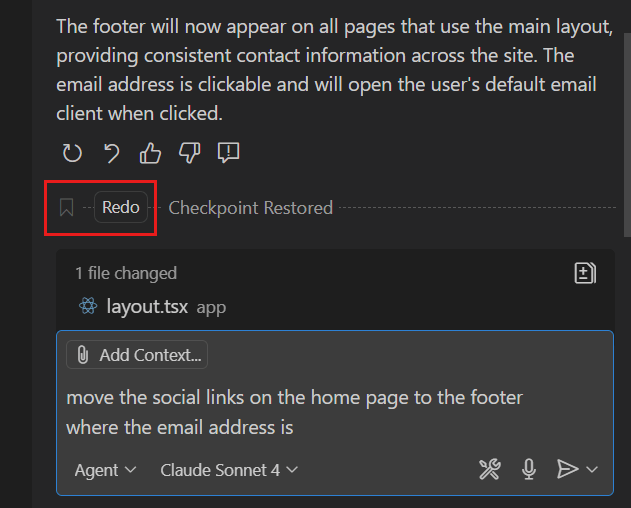
The Complete Overview of How to Redo in Visual Studio Code
At its most fundamental level, the redo function serves as the inverse of the undo command. While undoing allows a developer to step backward through the chronological history of their edits, redoing allows them to step forward again if they realize the "undo" action was premature or incorrect. In the context of Visual Studio Code, this is a critical component of the editor's command pattern, which tracks every discrete change made to the text buffer.
To execute this action, users must rely on specific keyboard shortcuts that vary depending on their hardware environment. For those working on Windows or Linux, the standard method for how to redo in Visual Studio Code is using the Ctrl + Y or Ctrl + Shift + Z key combinations. macOS users, following the convention of Apple’s ecosystem, will utilize the Cmd + Shift + Z command. These shortcuts are deeply integrated into the editor's core, ensuring that even during high-intensity coding sessions, the response time is instantaneous.
Historical Background and Evolution
The concept of undo and redo traces back to the early days of text processing and computational linguistics. In the era of command-line interfaces, state management was often primitive, and errors frequently required manual correction or restarting a process entirely. As graphical user interfaces (GUIs) emerged, the development of the "Command Pattern" in software engineering allowed developers to encapsulate actions as objects, making it possible to store them in a stack and traverse them in either direction.
Table of Contents
- The Complete Overview of How to Redo in Visual Studio Code
- Historical Background and Evolution
- Core Mechanisms: How It Works
- Key Benefits and Crucial Impact
- Major Advantages
- Comparative Analysis
- Future Trends and Innovations
- Conclusion
- Comprehensive FAQs
- Q: What is the difference between Ctrl + Y and Ctrl + Shift + Z in VS Code?
- Q: Why does my redo command stop working after I type something new?
- Q: Can I change the keyboard shortcut for redo in VS Code?
- Q: Does the redo function work across multiple files?
- Q: Is there a way to see a visual history of my changes to redo more effectively?
Visual Studio Code, built upon the Electron framework, modernized this approach by implementing a highly sophisticated history stack. Unlike older editors that might only track line-based changes, VS Code tracks granular changes at the character and block level. This evolution has transformed the redo process from a simple "re-type" mechanism into a robust temporal navigation tool, allowing developers to jump through complex refactoring steps with surgical precision.
Core Mechanisms: How It Works
The technical implementation of the redo feature relies on a data structure known as a stack. When you perform an action, such as typing a character or deleting a function, the editor creates an "undo object" containing the delta (the difference between the old state and the new state) and pushes it onto the undo stack. When you trigger the undo command, the editor pops the top item from this stack and applies the inverse operation, while simultaneously pushing that original action onto a separate "redo stack."
The redo process is essentially the act of popping an item from the redo stack and applying it back to the document. This mechanism is highly sensitive to new input; if a developer performs an undo and then immediately types new text, the redo stack is typically cleared to prevent logical inconsistencies in the file's history. This ensures that the timeline of the code remains linear and predictable, preventing the "branching" of text states that could lead to corrupted files or unexpected syntax errors.
Key Benefits and Crucial Impact
The ability to rapidly toggle between states of a codebase provides a safety net that encourages experimentation. When a developer knows they can instantly revert any mistake, they are more likely to attempt bold refactors or test new algorithmic approaches. This psychological safety is a significant driver of high-level productivity in modern software engineering environments.
Furthermore, the speed at which a developer can correct a mistake directly impacts the "flow state." Interrupting a deep concentration period to manually re-type a deleted block of code is a major source of cognitive friction. By utilizing the proper methods for how to redo in Visual Studio Code, professionals can maintain their mental model of the software architecture without being distracted by the minutiae of manual correction.
"The difference between an amateur and a professional is not the absence of mistakes, but the speed and elegance with which they are corrected."
Major Advantages
- Temporal Navigation: Allows for non-linear movement through the history of a file, enabling precise control over the evolution of code.
- Error Mitigation: Provides an immediate recovery path for accidental deletions, unintended refactors, or incorrect copy-paste operations.
- Cognitive Preservation: Minimizes the need to manually re-enter logic, keeping the developer's focus on high-level problem-solving.
- Workflow Fluidity: Supports a rapid "trial and error" approach to coding, which is essential for debugging and prototyping.
- Cross-Platform Consistency: Standardized shortcuts ensure that developers can move between different operating systems without losing their muscle memory.

Comparative Analysis
| Feature/Environment | Windows/Linux Shortcut | macOS Shortcut | Primary Use Case |
|---|---|---|---|
| Standard Redo | Ctrl + Y / Ctrl + Shift + Z | Cmd + Shift + Z | Reversing an accidental undo. |
| Undo Command | Ctrl + Z | Cmd + Z | Reverting the most recent change. |
| Command Palette | Ctrl + Shift + P | Cmd + Shift + P | Searching for "Redo" via text. |
| Custom Keybindings | User-Defined | User-Defined | Optimizing for specialized hardware. |
Future Trends and Innovations
As we look toward the future of Integrated Development Environments (IDEs), the concept of "undo" and "redo" is expected to move beyond simple text manipulation. We are seeing the early stages of "semantic undo," where the editor understands the intent behind a change. For example, if a developer renames a variable across an entire project, a future version of VS Code might allow them to undo that specific semantic action as a single unit, even if the changes spanned dozens of files.
Additionally, the integration of Artificial Intelligence is poised to redefine state management. AI-driven assistants may soon offer "intelligent redo" suggestions, predicting whether a developer wants to revert to a previous version of a function based on the context of the current error. This shift from manual command execution to context-aware assistance will further reduce the friction between thought and implementation, making the development process more intuitive than ever before.
Conclusion
Mastering the nuances of how to redo in Visual Studio Code is a fundamental requirement for any professional seeking to optimize their development workflow. While the command itself is simple, the underlying mechanics and the impact on cognitive load are profound. By understanding the keyboard shortcuts and the way the editor manages its history stack, developers can navigate their codebases with a level of confidence and speed that is essential in a high-stakes technical environment.
Ultimately, tools like VS Code are designed to stay out of the way of the developer's intent. The redo function is a testament to this philosophy, providing a seamless way to correct course without breaking the momentum of creation. Whether you are a student learning the ropes or a veteran engineer managing complex systems, integrating these efficient practices into your daily routine will undoubtedly yield long-term benefits in both speed and accuracy.
Comprehensive FAQs
Q: What is the difference between Ctrl + Y and Ctrl + Shift + Z in VS Code?
A: In most standard configurations of Visual Studio Code on Windows and Linux, both commands serve the same purpose: re-applying an undone action. However, Ctrl + Y is a legacy shortcut inherited from older Windows applications, while Ctrl + Shift + Z is the more modern standard used in many professional development tools. VS Code supports both to ensure compatibility with different user habits.
Q: Why does my redo command stop working after I type something new?
A: This is intended behavior. The undo/redo system operates on a linear stack. When you perform an "undo" and then introduce new changes (like typing a new character), you are effectively creating a new timeline. To prevent logical conflicts and "ghost" code, the editor clears the existing redo stack to ensure that the history remains consistent with your current edits.
Q: Can I change the keyboard shortcut for redo in VS Code?
A: Yes, Visual Studio Code is highly customizable. You can navigate to 'File' > 'Preferences' > 'Keyboard Shortcuts' (or use Cmd/Ctrl + K, then Cmd/Ctrl + S) and search for the command "redo". From there, you can assign any key combination that best suits your personal workflow or specialized hardware.
Q: Does the redo function work across multiple files?
A: The standard redo command typically operates on the specific file that currently has focus. If you undo a change in 'File A' and then switch to 'File B', the redo command will attempt to redo an action in 'File B'. To manage changes across multiple files, you should look into version control systems like Git, which provide much more robust state management for entire projects.
Q: Is there a way to see a visual history of my changes to redo more effectively?
A: While VS Code does not have a built-in visual timeline for every keystroke, you can use the "Timeline" view located in the Explorer sidebar. This view shows local history saves and Git commits, allowing you to see how a file has evolved over time and revert to specific historical states more effectively than the simple undo/redo stack.
Leave a Comment
Comments are moderated before appearing. The data you submit is processed according to the Privacy Policy of cixa.org.